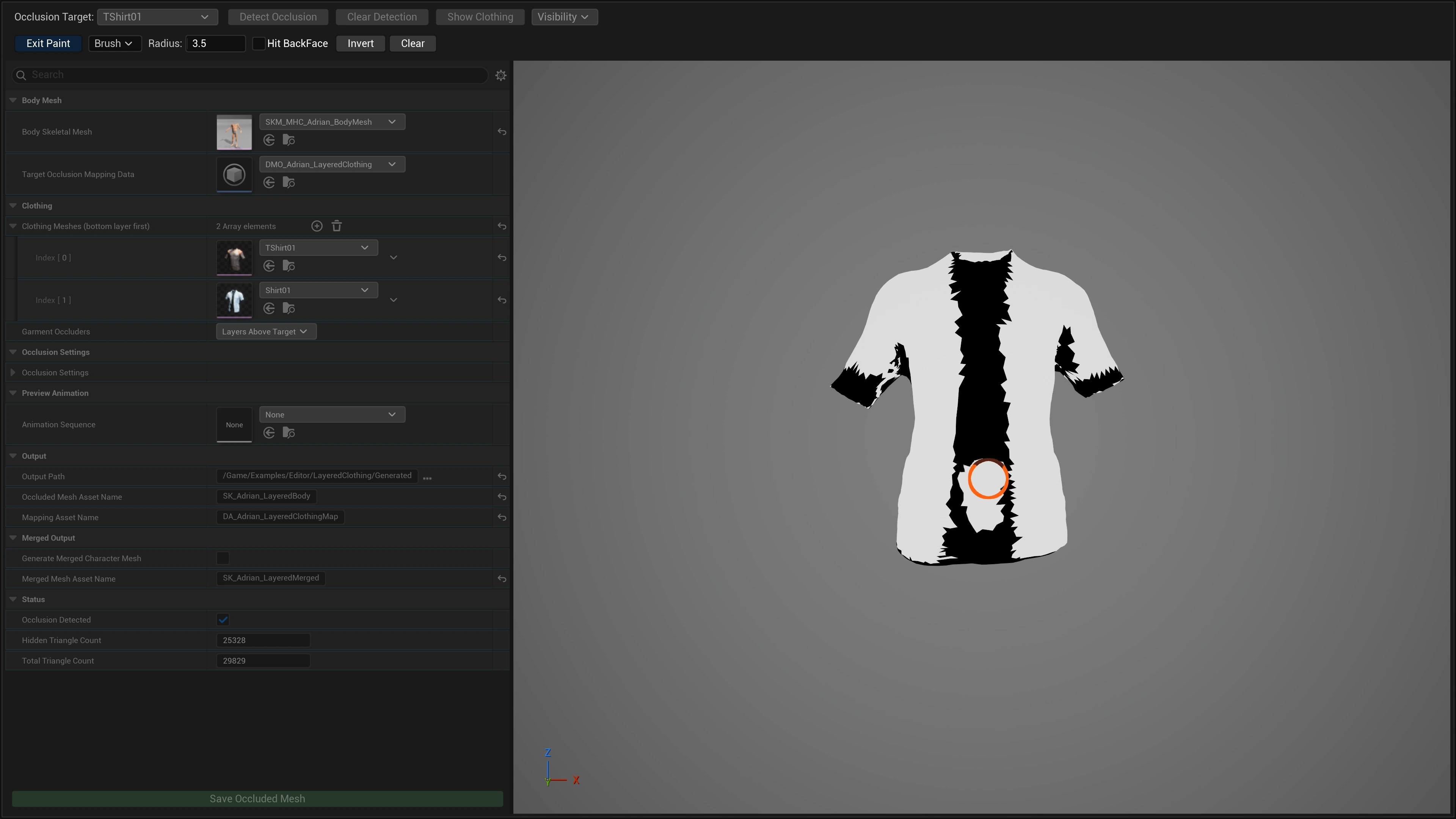
When to Use Paint Mode
If automatic detection marks something incorrectly — hiding fingers near a cuff, or leaving a patch visible inside a jacket — fix it manually with Paint Mode. Click Paint Occlusion to enter (button turns blue); click again to exit. Paint strokes are always preserved alongside automatic detection results.
Painting the Body vs. a Garment
Paint Mode always applies to whatever the Occlusion Target dropdown is set to. Set it to Body Mesh to paint the body; set it to a clothing mesh to paint that garment. The tools, shortcuts and colours are identical either way.
When you enter Paint Mode the tool hides every other mesh and shows only the target, flat-shaded in black and white, so nothing obstructs your strokes.
Paint Tool Modes
Brush
Classic sphere brush — LMB drag to hide, Shift+LMB to restore. Adjust radius with the Radius spinbox.
Select
Drag a rectangle on screen. All triangles whose centroids fall inside are painted. Shift+drag to restore.
Lasso
Draw a freehand polygon on screen. Triangles inside are painted. Shift+drag to restore.
Hit BackFace
Checkbox in Brush mode. Paints opposite-facing triangles simultaneously — essential for MetaHuman inner-skin faces.
Keyboard Shortcuts
| Action | Control |
|---|---|
| Mark triangles as hidden | LMB drag (Brush) or drag a region (Select / Lasso) |
| Mark triangles as visible | Shift + LMB drag |
| Undo | Ctrl + Z |
| Redo | Ctrl + Y |
| Flip all values | Invert button in the toolbar |
| Remove all paint | Clear button in the toolbar |
Understanding the Preview