- Open your level or the clean
L_EditorSetupexample. - Navigate to
Common/Blueprints/BP_AOSPostProcessin the plugin Content Browser. Drag that Blueprint into the level. Select the placed actor. - In Details → AOS Post Process, press + on Post Process Layers. Pick an
MI_PP_*material from Looks. - Drag the layer's Weight slider between 0 and 1. Changes preview during the drag in the editor. Set Weight to 0 to bypass the layer without removing it.
- Add another array entry and pick a different material. Enable or bypass each layer independently. Reorder array entries to change pass order within the same Blendable Location.
- Use Master Weight to fade the complete stack. Disable Enabled to bypass all layers.
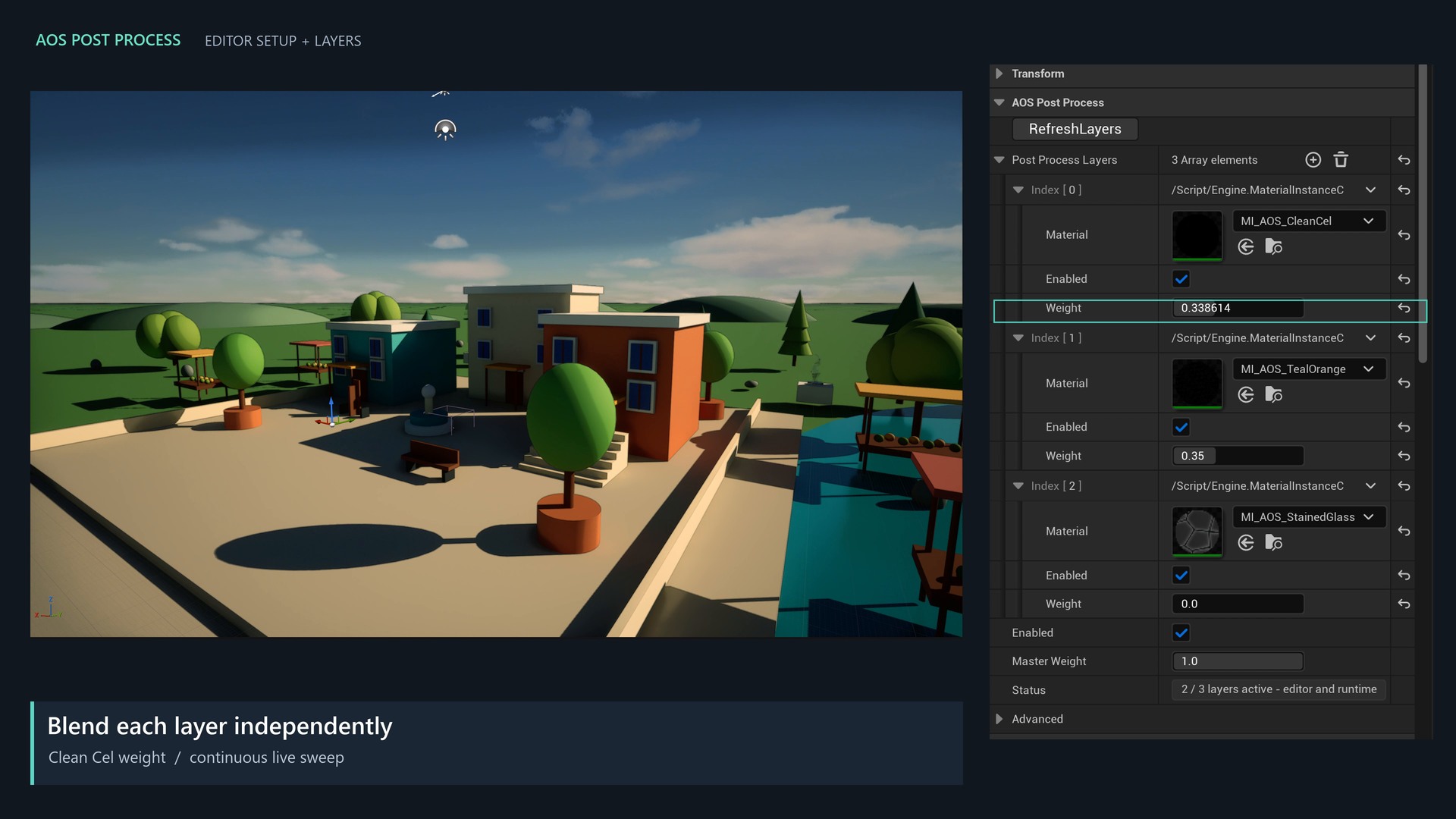
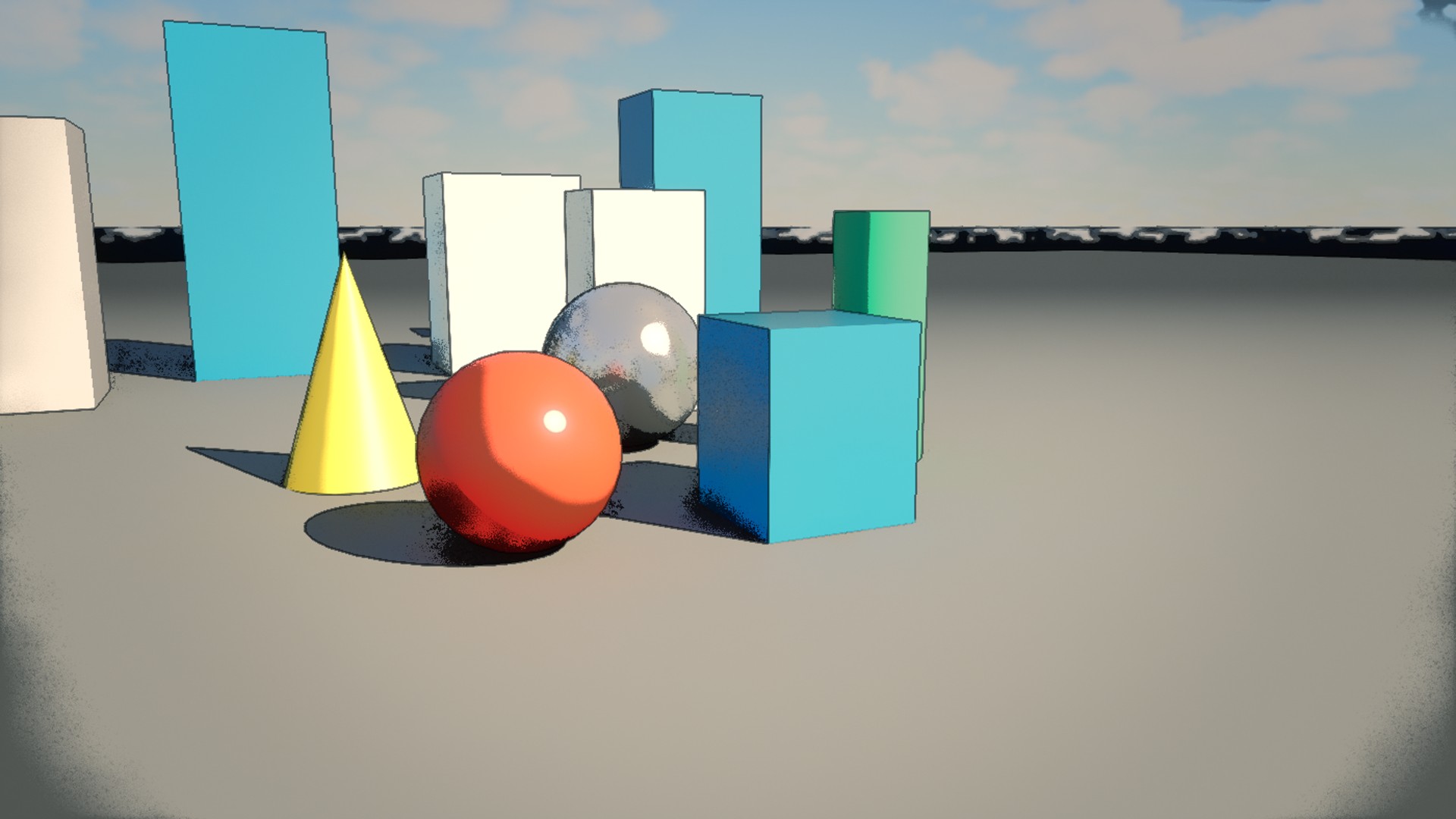
Weight scales each preset's authored Strength once; Master Weight multiplies it. Each slot owns a separate dynamic material, even if several slots reference the same source. Layer weights are independent contributions, not normalized percentages that must sum to one. The original material instances remain unchanged.
This actor is called AOS Post Process because it works in both the editor and runtime. It is unbound and affects the whole level; use localized shader masks when the effect should apply only to part of the scene. Higher-priority overlapping volumes and passes in other blendable locations can still affect the final result.