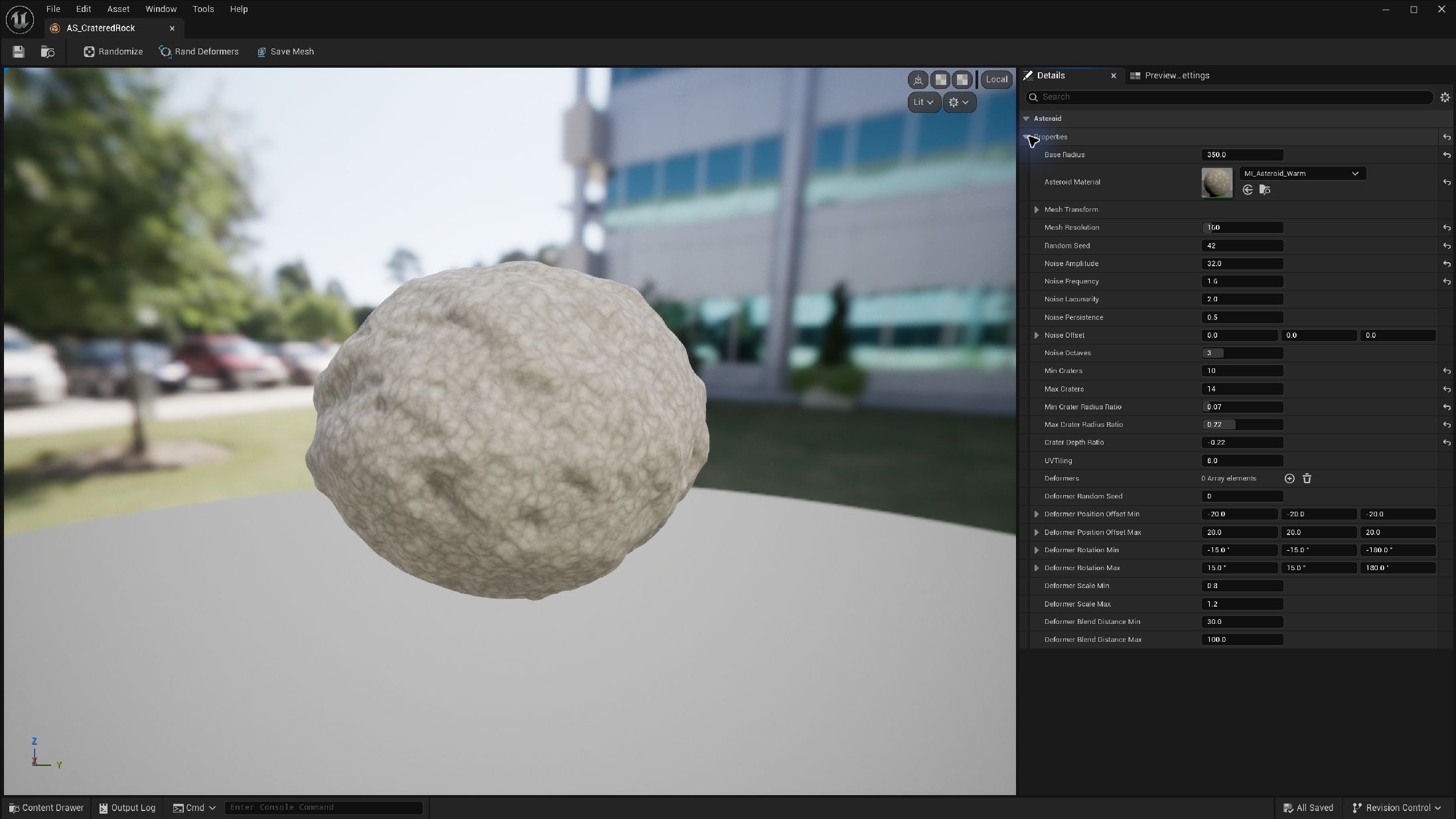
Export an Asteroid Asset
- Open the recipe in the Asteroid Asset Editor.
- Wait for generation and choose Save Mesh.
- Choose an asset name and project destination.
- Open the saved static mesh and inspect materials, silhouette and collision. Place it as a normal static mesh.
Export is a snapshot. Recipe changes require another export.
Convert a placed asteroid
On an Asteroid Actor, choose Mesh Conversion → Convert To Static Mesh. The editor creates an asset and replaces the procedural component with a static mesh component.
Convert To Procedural Mesh is available, but conversion does not preserve a complete editable recipe. Keep a duplicate procedural actor or saved recipe if you need the original settings.
Distance LOD
| Parameter | Type / default or example | Effect | When to use |
|---|---|---|---|
| Enable LOD | Boolean · true | Changes detail with camera distance | Disable for a fixed-detail comparison. |
| LOD1 Distance | Float · default 5000 cm | Half the authored resolution beyond this distance | Place where reduced detail is hard to see. |
| LOD2 Distance | Float · default 10000 cm | One quarter of authored resolution | Reduce distant geometry. |
| Culling Distance | Float · default 20000 cm | Hides distant asteroids | Choose beyond the useful visible range. |
| Enable Viewport LOD | Boolean · true | Distance updates in the editor | Disable for close mesh inspection. |
The authored Mesh Resolution remains intact; moving closer restores higher detail. LOD0 Distance is exposed, but the high-detail tier continues until LOD1 Distance. It is not an additional mesh tier.
Field budgets
Cluster hardware ray tracing is off by default. When enabling it, tune ray-tracing distance, instance and triangle limits. Template geometry still needs attention; do not assume a detailed template becomes cheap automatically.
Start with modest count and resolution, profile the target scene, and bake finished objects when procedural updates are unnecessary. Runtime generation and editor asset export are separate workflows.