What Is an FBX Mesh Actor?
When an FBX is imported with Spawn FBX Actor enabled, the plugin creates one AFBXMeshActor (or your own subclass) in the world. This actor holds all generated ProceduralMeshComponents organized under a node hierarchy that mirrors the FBX scene structure.
You can query, select, and modify this actor using Blueprint nodes at runtime.
Selection and Hover
Call these on the FBX Import Manager actor reference (not on the mesh actor directly):
| Node | What it does |
|---|---|
| Select Actor | Marks an FBX Mesh Actor as selected and triggers On Actor Selected on that actor, where you can implement a highlight or outline effect. |
| Hover At Actor | Triggers hover highlight on the actor and a specific component under the cursor. |
| Reset Hovered Actor | Clears the hover state. |
| Reset Actor Selection | Deselects all currently selected actors and components. |
Call these on the FBX Mesh Actor reference itself to work at the sub-component level:
| Node | What it does |
|---|---|
| Select Component | Selects an individual mesh section (e.g. from a hit result). Triggers On Component Selected. Pass bDeselectRest = true to auto-clear previous selection. |
| Deselect Current Components | Clears the current component selection. |
| Select Component From Mesh Node | Select a component by passing its UMeshNode reference instead of a hit component. |
Querying Nodes
| Node | Returns |
|---|---|
| Get Root Nodes | Array of all top-level UMeshNode objects in the hierarchy |
| Get Mesh Node From Component | The UMeshNode associated with a given ProceduralMeshComponent |
| Get Skeletal Mesh Nodes | Array of all USkeletalMeshNode objects — the bone-based meshes in this actor |
ℹ️ Mesh Node hierarchy:
UMeshNode is the base class. Geometry meshes are UMeshNode_Geometry. Collision meshes are UMeshNode_Collision. Skeletal meshes are USkeletalMeshNode (extends Geometry). Light nodes are URuntimeLightNode.
Changing Materials at Runtime
Call these on the FBX Mesh Actor reference:
| Node | Parameters | What it does |
|---|---|---|
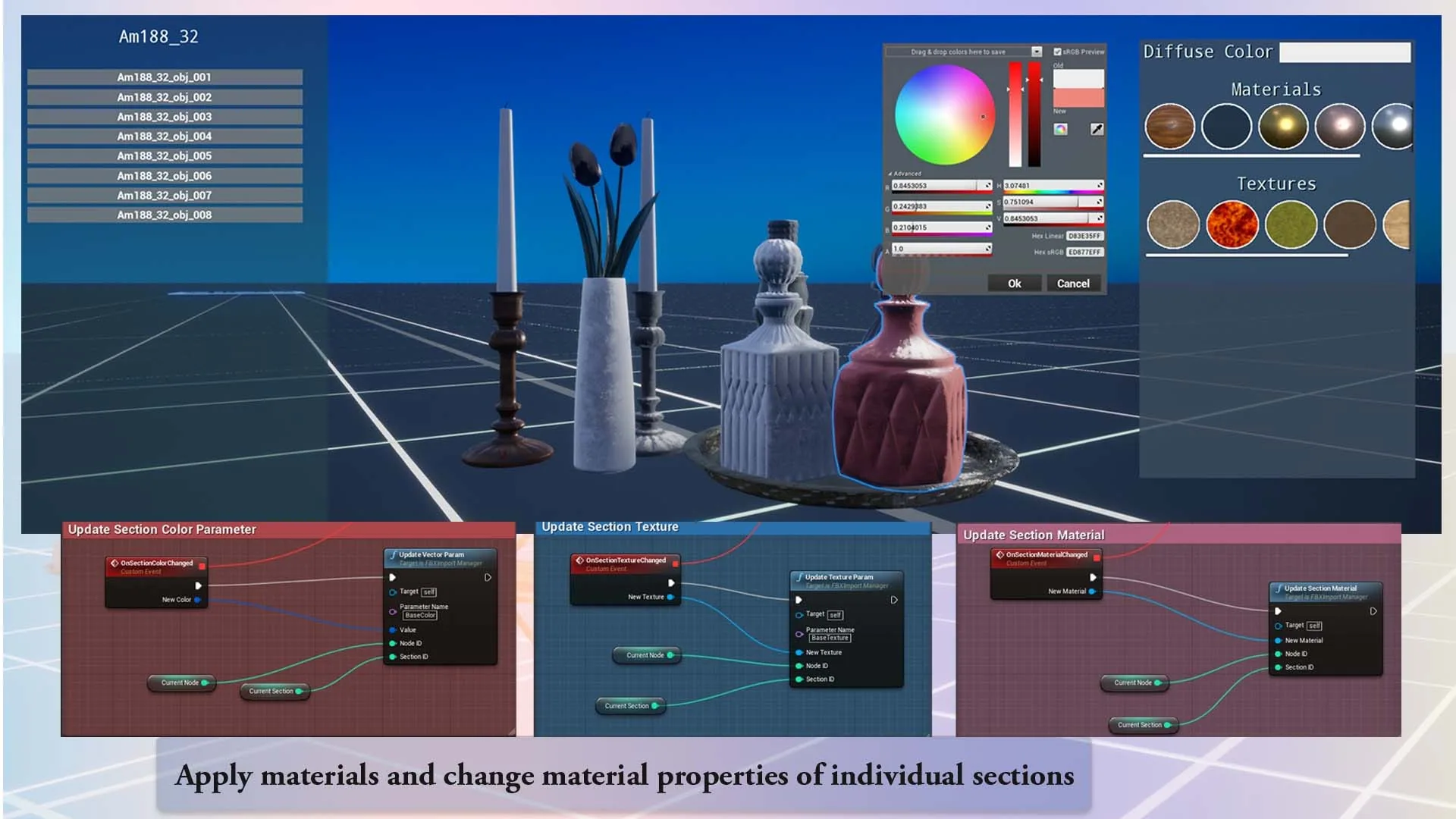
| Update Section Material | Section ID, Material Interface, Mesh Component | Replaces the material on a specific section by index |
| Update Texture Parameter | Section ID, Parameter Name, Texture, Mesh Component | Swaps a texture inside a dynamic material by parameter name |
| Update Scalar Parameter | Section ID, Parameter Name, Float, Mesh Component | Changes a float property (e.g. roughness, metallic) inside a material |
| Update Vector Parameter | Section ID, Parameter Name, LinearColor, Mesh Component | Changes a color or vector value (e.g. tint) inside a material |
💡 Section ID: Each material slot in the imported mesh corresponds to a section index starting from 0. If your FBX mesh has 3 materials, Section IDs are 0, 1, and 2.
Implementable Events on the FBX Mesh Actor
Override these in your own Blueprint subclass of AFBXMeshActor to add custom feedback:
| Event | When it fires |
|---|---|
| On Actor Selected | When this actor is selected via Select Actor |
| On Actor Selection Reset | When selection is cleared |
| On Component Hovered | When the cursor moves over a specific mesh component |
| On Component Selected | When a specific mesh section is selected |
| On Section Received | Called with full section data, material info, and texture info — useful for populating a properties panel |