Editor Mode Placement
The custom editor mode drives placement preview, toolbar controls, shortcut deltas, and last-tool workflow.
Parameter details
| Parameter / area | Current behavior |
|---|---|
| The last used tool and tab | The last used tool and tab are restored when entering the editor mode. |
| Space freezes or resumes the preview without needing to refocus the viewport | Space freezes or resumes the preview without needing to refocus the viewport. |
| Escape cancels the preview/tool; after placement, Escape deselects the tool and selects the placed actor | Escape cancels the preview/tool; after placement, Escape deselects the tool and selects the placed actor. |
| Mouse wheel | Mouse wheel changes copy count in Copy Tool; Ctrl + mouse wheel changes the active W/E/R delta. |
| W cycles translation X/Y/Z, E cycles rotation X/Y/Z, and R cycles scale X/Y/Z; translation X | W cycles translation X/Y/Z, E cycles rotation X/Y/Z, and R cycles scale X/Y/Z; translation X is the default active delta. |
| The top Setup details section | The top Setup details section exposes Snap, Snap Size, Pivot X, and Pivot Y for both shapes and utilities. |
Use it when: use it for fast viewport-first placement while still editing precise values in the Details panel.
Copy Tool
The Copy Tool previews every selected source actor and commits repeated offsets on click.
Parameter details
| Parameter / area | Current behavior |
|---|---|
| Output Mode | Output Mode switches between normal actor copies and linked instance output. |
| Copy Count | Copy Count controls how many outputs are created per selected source actor. |
| Translation Offset, Rotation Offset, and Scale Delta | Translation Offset, Rotation Offset, and Scale Delta are applied as N-times deltas per output. |
| Multiple selected actors preview and place together, anchored around the first selected source | Multiple selected actors preview and place together, anchored around the first selected source. |
| Rotation deltas rotate copied items around the first copy anchor | Rotation deltas rotate copied items around the first copy anchor. |
Use it when: use it for repeated cover, modular wall runs, fence chunks, prop lines, and quick repeated layout variants.
Instance Group
The Instance Group actor preserves the older child-actor group workflow. Current Copy → Instance output instead creates independent level actors linked to their source.
Parameter details
| Parameter / area | Current behavior |
|---|---|
| Copy Count, Translation Offset, Rotation Offset, and Scale Delta match the Copy Tool settings | Copy Count, Translation Offset, Rotation Offset, and Scale Delta match the Copy Tool settings. |
| Source Actors | Source Actors stores every original actor used for the group. |
| Child Actor Components represent the committed linked copies | Child Actor Components represent the committed linked copies. |
| Source property delegates keep children synchronized when source actors change | Source property delegates keep children synchronized when source actors change. |
| A legacy HISM slot remains for older saved groups, but new linked output | A legacy HISM slot remains for older saved groups, but new linked output is actor-level. |
Use it when: use it when repeated actors should stay bound to editable source actor properties instead of only sharing a mesh.
Measure Tool
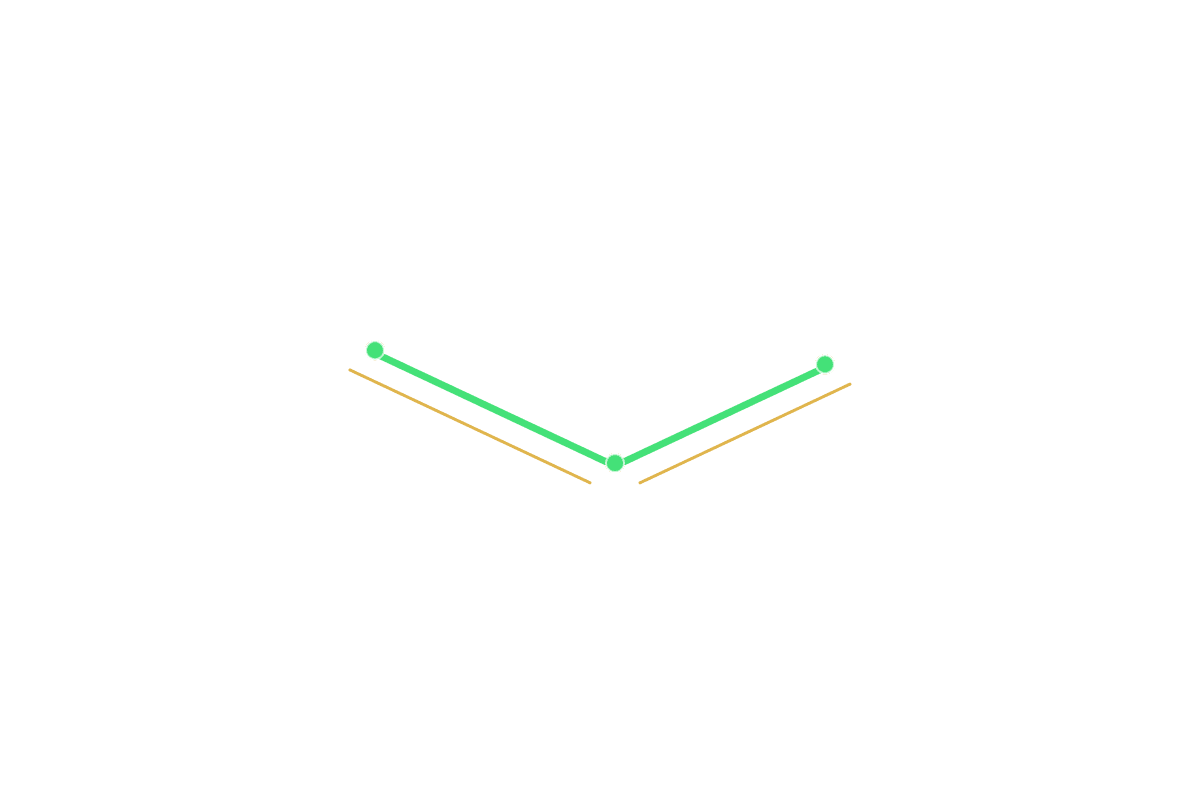
The Measure Tool draws multi-point straight or curved measurements directly in the level.
Parameter details
| Parameter / area | Current behavior |
|---|---|
| Points | Points stores committed local-space measurement points. |
| Curved Segments and Segment Tangent Scales turn each segment into a Bezier curve | Curved Segments and Segment Tangent Scales turn each segment into a Bezier curve. |
| Line Color, Draw Thickness, Text Size, and distance visibility control the display | Line Color, Draw Thickness, Text Size, and distance visibility control the display. |
| Measure Unit | Measure Unit supports cm, m, mm, km, ft, and in. |
| Axis Breakdown and Axis Guides expose X/Y/Z travel alongside total distance | Axis Breakdown and Axis Guides expose X/Y/Z travel alongside total distance. |
Use it when: use it for corridor length checks, jump gaps, room scale, encounter spacing, and curved path estimates.
Text Label
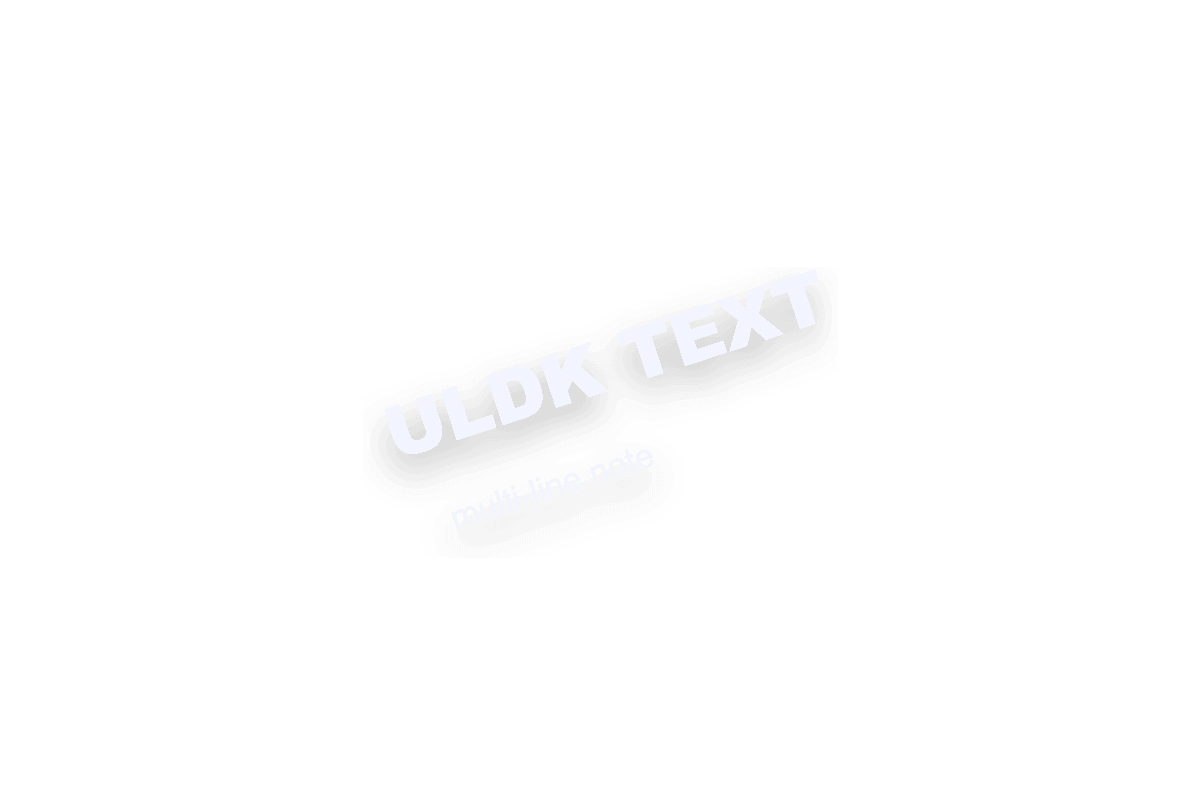
Text Label renders multi-line 3D notes in the world with per-line styling.
Parameter details
| Parameter / area | Current behavior |
|---|---|
| Lines contains independent text entries | Lines contains independent text entries. |
| Each line has Text, Color, Size, Font, Material, Horizontal Alignment, and Visible | Each line has Text, Color, Size, Font, Material, Horizontal Alignment, and Visible. |
| Line Spacing | Line Spacing controls vertical spacing between entries. |
| Refresh Text rebuilds text render components from the line array | Refresh Text rebuilds text render components from the line array. |
Use it when: use it for encounter notes, objective labels, route names, designer reminders, and prototype signage.
Actor Placement
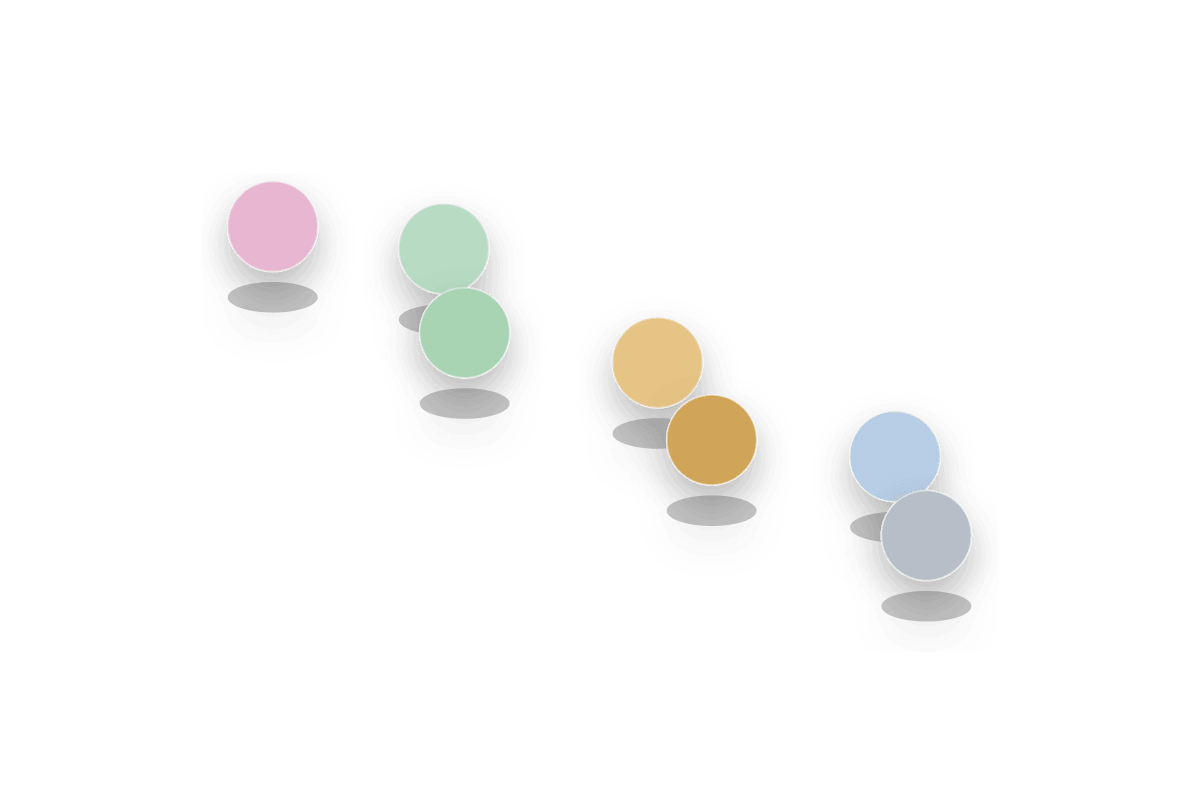
Actor Placement places actors or HISM meshes by click, brush, grid, spline fill, or physics drop.
Parameter details
| Parameter / area | Current behavior |
|---|---|
| Placement Type includes Click, Brush, Grid, and Physics Drop; legacy Spline | Placement Type includes Click, Brush, Grid, and Physics Drop; legacy Spline is hidden in favor of Spline Path. |
| Placement Source Type chooses weighted Actor Class entries or weighted HISM entries | Placement Source Type chooses weighted Actor Class entries or weighted HISM entries. |
| Brush Settings support Surface or Volume paint, radius, density, min distance, and stroke spacing | Brush Settings support Surface or Volume paint, radius, density, min distance, and stroke spacing. |
| Grid Settings expose rows, columns, spacing, and jitter | Grid Settings expose rows, columns, spacing, and jitter. |
| Physics Drop spawns a temporary falling pile, simulates it in the editor, and can freeze it after settling | Physics Drop spawns a temporary falling pile, simulates it in the editor, and can freeze it after settling. |
| Random Settings add rotation and scale variation | Random Settings add rotation and scale variation. |
Use it when: use it for prop scattering, repeated meshes, debris piles, cover placement, and quick level dressing prototypes.
Spline Path - Road
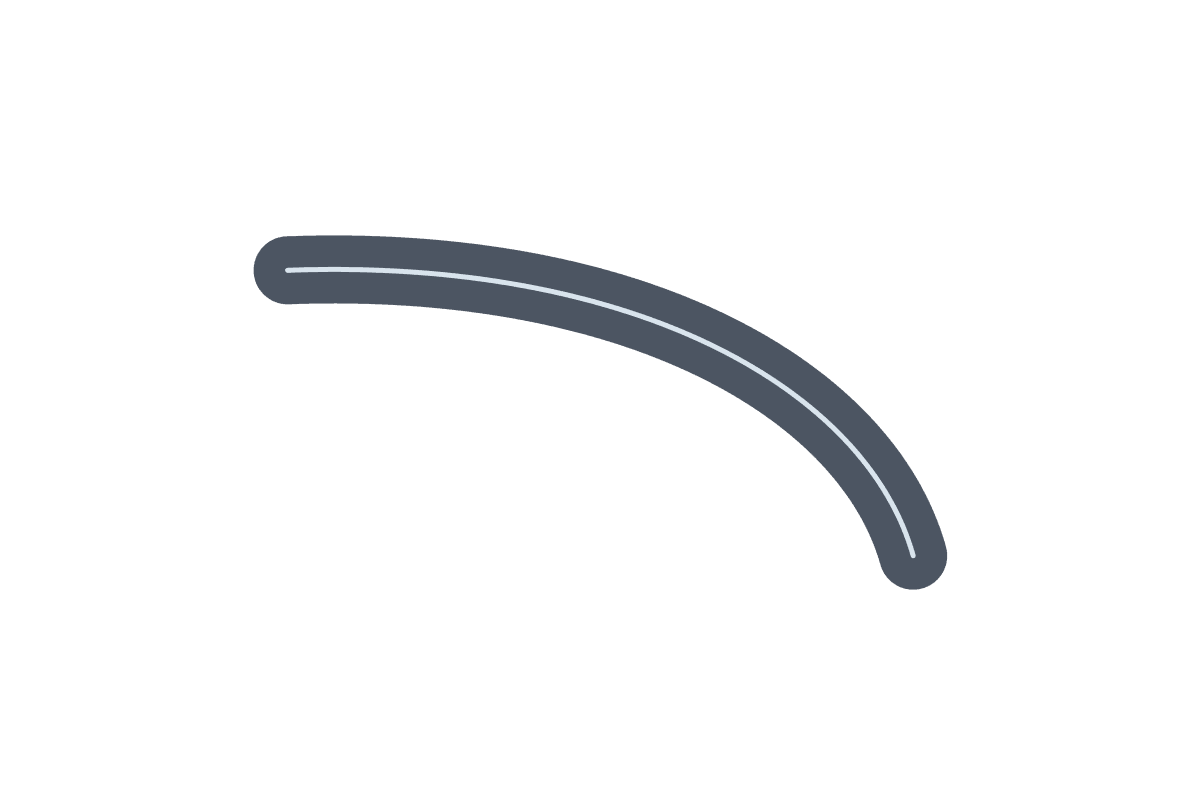
Road mode generates a road ribbon along the editable spline path.
Parameter details
| Parameter / area | Current behavior |
|---|---|
| Spline Type | Spline Type is Road. |
| Spline Shape generates Linear, Circular, or Polygonal control layouts | Spline Shape generates Linear, Circular, or Polygonal control layouts. |
| Road Width | Road Width controls the generated road surface width. |
| Road Thickness gives the road mesh vertical depth | Road Thickness gives the road mesh vertical depth. |
| Mesh Resolution, Road Material, and Vertical Offset control tessellation, material, and height placement | Mesh Resolution, Road Material, and Vertical Offset control tessellation, material, and height placement. |
Use it when: use it for greybox roads, paths, bridges, and wide route surfaces.
Spline Path - Actor Placement
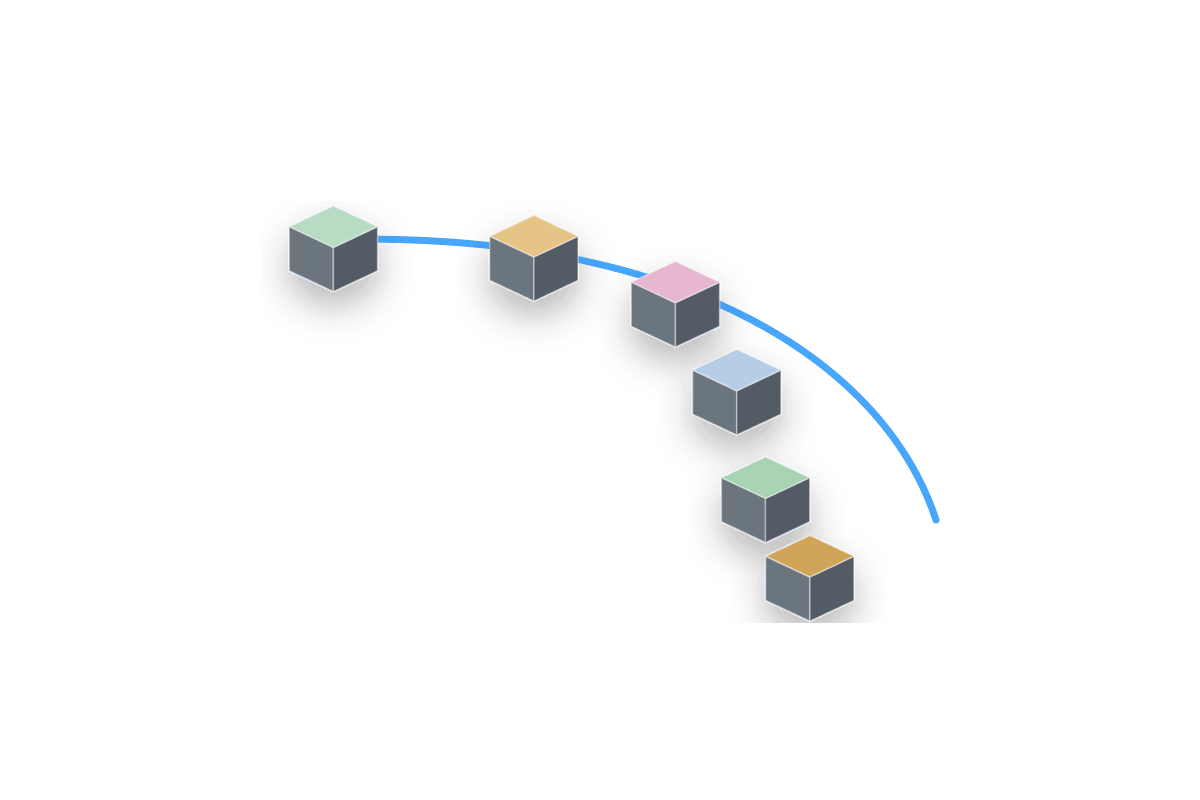
Actor Placement mode distributes actors or meshes along spline points and curves.
Parameter details
| Parameter / area | Current behavior |
|---|---|
| Spline Type | Spline Type is Actor Placement. |
| Distribution | Distribution supports Fixed Spacing, Even Count, and Random spacing. |
| Alignment and yaw | Alignment and yaw controls orient placed actors along the spline. |
| Scale, dimensions, and lateral offset create variation while following the path | Scale, dimensions, and lateral offset create variation while following the path. |
| Weighted entries choose which actor or mesh appears at each distribution point | Weighted entries choose which actor or mesh appears at each distribution point. |
Use it when: use it for prop lines, cover placement, pickups, lamps, rocks, and spline-following scatter.
Spline Path - Spline Mesh
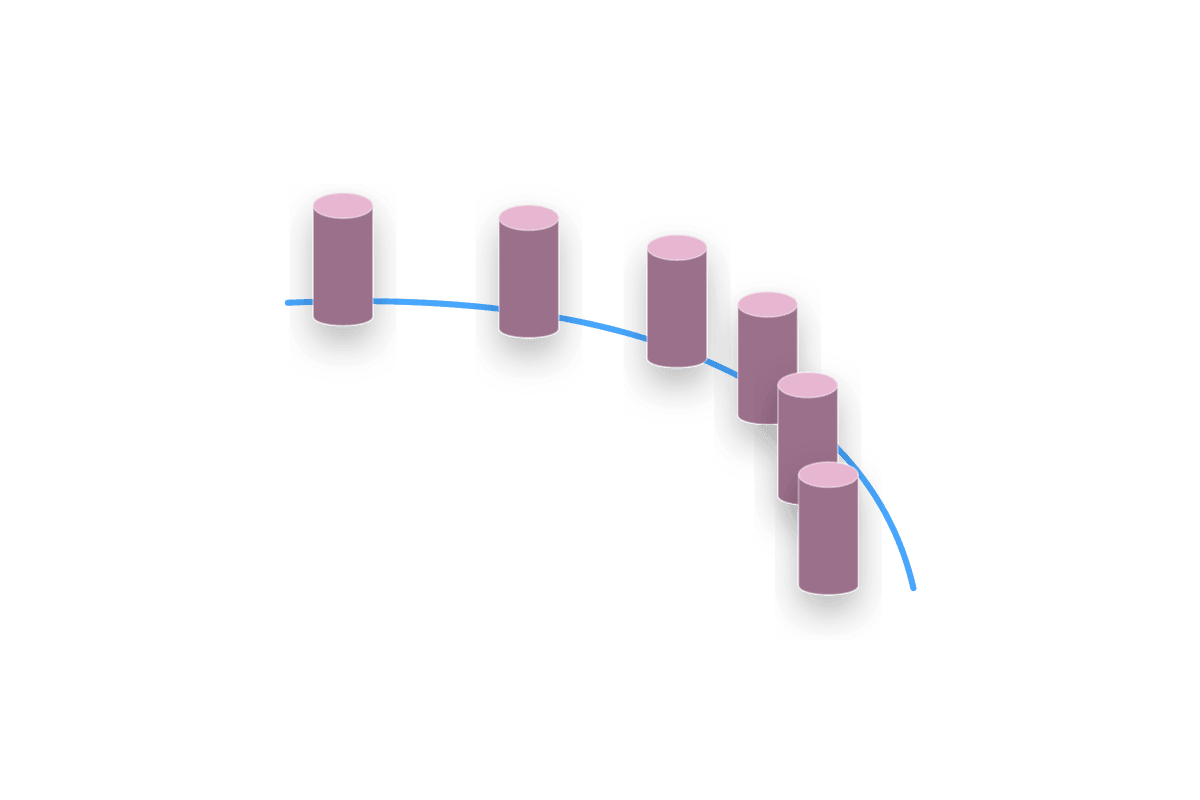
Spline Mesh mode bends a source mesh along each spline segment.
Parameter details
| Parameter / area | Current behavior |
|---|---|
| Spline Type | Spline Type is Spline Mesh. |
| Source Mesh chooses the mesh deformed along the spline | Source Mesh chooses the mesh deformed along the spline. |
| Forward Axis sets the mesh direction used for deformation | Forward Axis sets the mesh direction used for deformation. |
| Start Scale, End Scale, Roll, and Offset adjust segment shaping | Start Scale, End Scale, Roll, and Offset adjust segment shaping. |
| Tangent Scale and Smooth Interpolation control curve behavior | Tangent Scale and Smooth Interpolation control curve behavior. |
Use it when: use it for pipes, cables, rails, curbs, hoses, and mesh-deformed route elements.
Spline Path - Fence
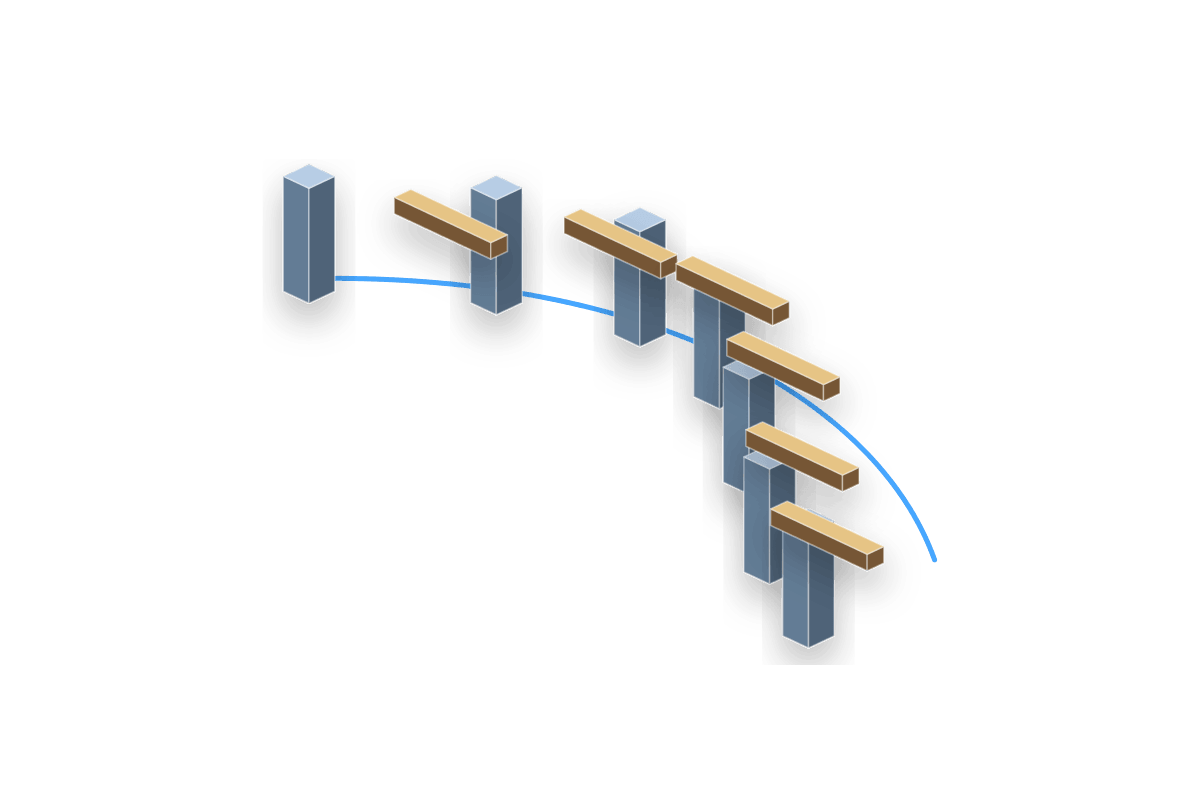
Fence mode builds repeated fence or balustrade geometry along the spline path.
Parameter details
| Parameter / area | Current behavior |
|---|---|
| Spline Type | Spline Type is Fence. |
| Fence Type | Fence Type switches Solid Wall and Balustrade. |
| Rail meshes and baluster meshes define the repeated parts | Rail meshes and baluster meshes define the repeated parts. |
| Dimensions, offsets, and spacing control the generated fence rhythm | Dimensions, offsets, and spacing control the generated fence rhythm. |
| Separate materials can be assigned to fence rails, balusters, and wall surfaces | Separate materials can be assigned to fence rails, balusters, and wall surfaces. |
Use it when: use it for fences, railings, barriers, balcony edges, and modular path borders.