Material slots
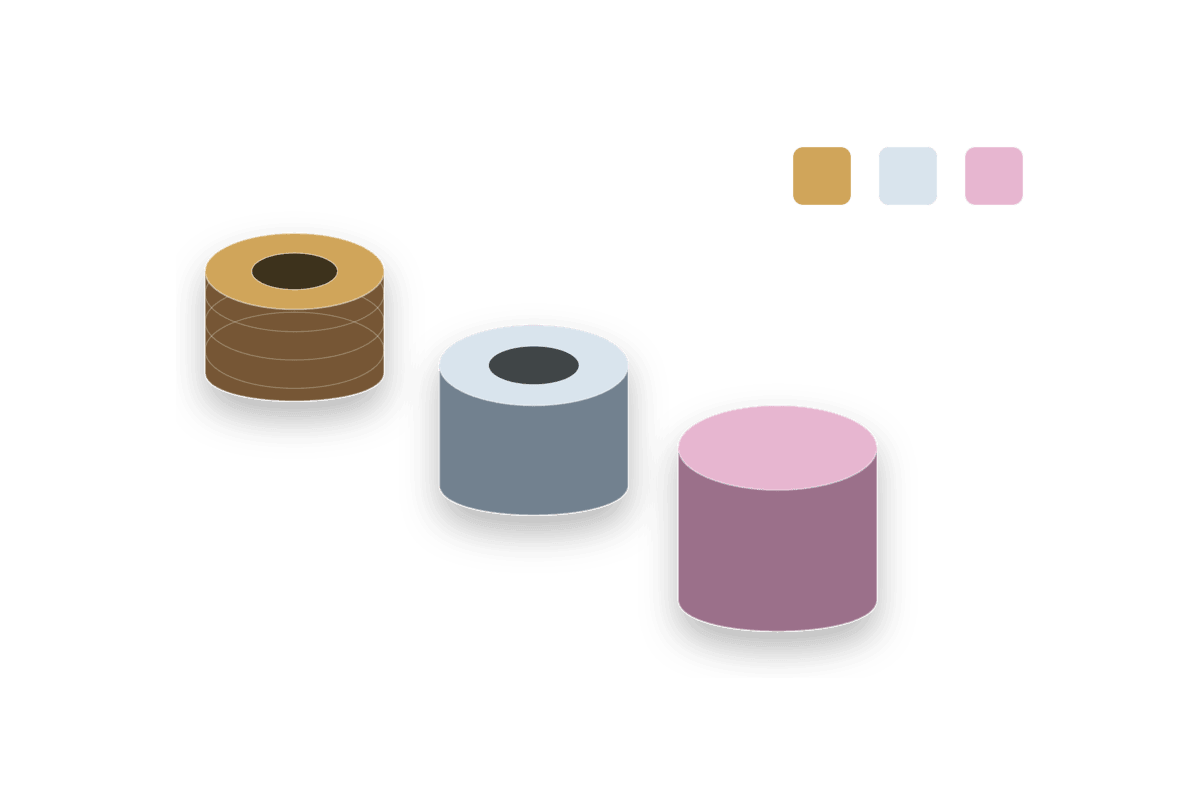
| Control | Current behavior |
|---|---|
| Material Slot 0 | Main side/body material. Empty means use the ULDK default material. |
| Material Slot 1 | Secondary generated section material. Usually caps/top/bottom; Arch uses it for legs when Leg Height creates them. Empty means use the ULDK default material. |
| Material Slot 2 | Conditional extra slot. Used by Cylinder cap rings or Barrel hoops only when those sections exist. |
| Greybox Color | Tint for the default material when no custom material is assigned. |
| UV Projection Mode | Orthogonal, Cylindrical, Polar, Planar XY/XZ/YZ, Spherical, Radial Auto, and related modes for generated UVs. |
| Use UV Material Slot | Off applies visible UV controls globally. On applies them to the chosen UV Material Slot without erasing other slot settings. |
| Reset | The reset icon restores the selected actor/tool properties to default values and participates in undo/redo. |
| Undo/Redo | Placement and preview property operations are wrapped so standard editor undo/redo can step through them. |
UV workflow
- Select the placed ULDK actor.
- Choose a UV Projection Mode suited to the shape: Orthogonal for boxes/walls/floors, Cylindrical for sides of cylinders and pipes, Polar or Radial Auto for caps, Spherical for spheres.
- Adjust UV Scale, UV Tiling, UV Offset, and UV Rotation Degrees.
- Enable Use UV Material Slot only when one material slot should receive different UV values.
- Set UV Material Slot to the generated slot you want to edit. Slot-specific values are stored separately and restored when switching slots.
Preview material
The placement viz uses /UltimateLevelDesignKit/Materials/M_ULDK_VizGhost directly. There is no material instance layer. If you want a different preview color or glow, edit that base material in the plugin content.