Generate a first clip
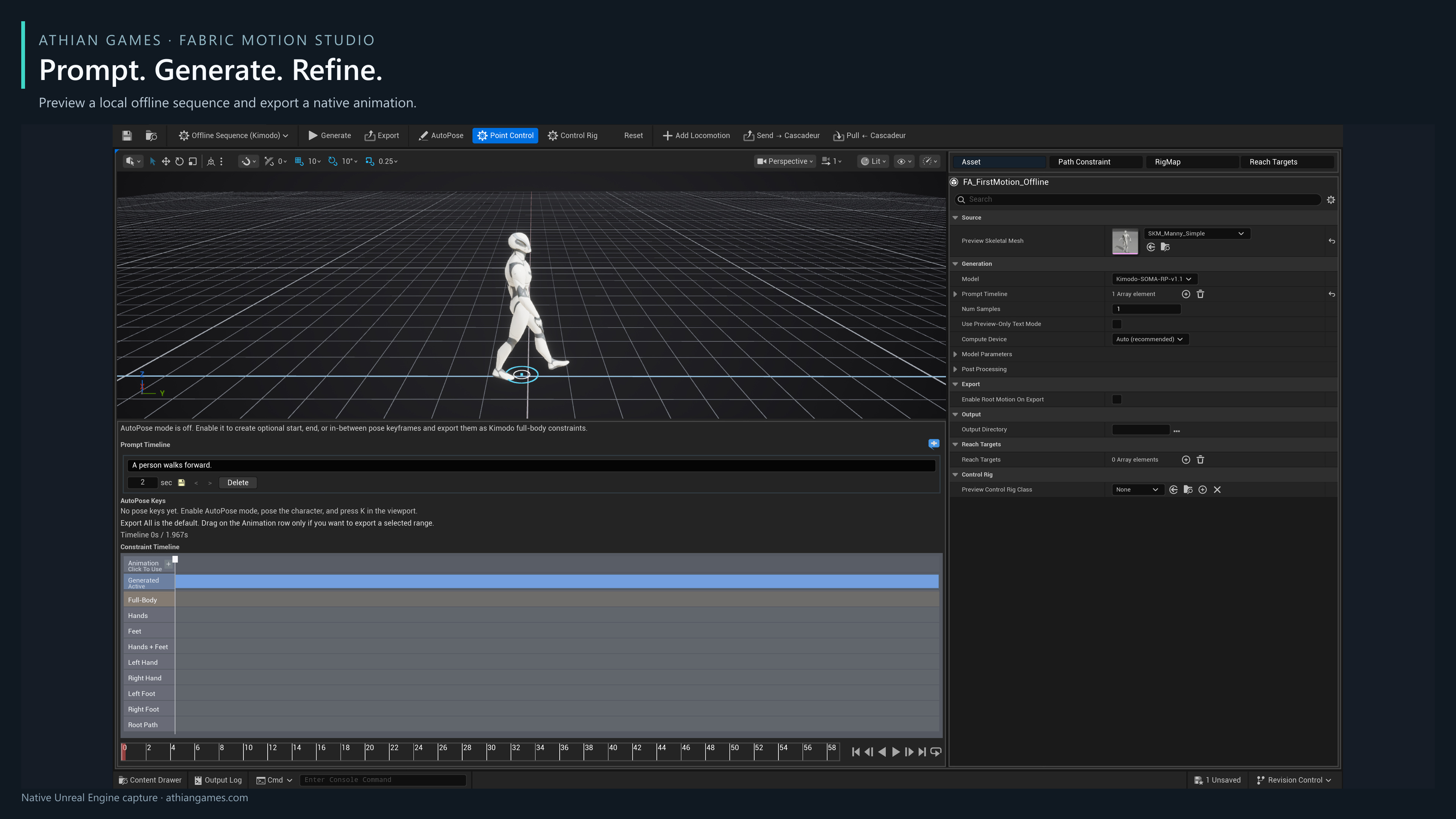
- Choose Offline Sequence (Kimodo).
- Set Preview Skeletal Mesh to SKM_Manny_Simple.
- Enter A person walks forward. in Prompt Timeline, set its duration to 2 seconds, and set Seed to 42 for this example.
- Press Generate. Wait for completion, then scrub and play the preview. First-use initialization can take several minutes.
- Press Export and save the native AnimSequence in your chosen Content Browser folder. Open that animation and check its skeleton, travel and playback.
| Parameter | Example or default | Effect and use |
|---|---|---|
| Prompt Timeline | Example: walk, 2 seconds | Each segment describes the motion for its duration. Add segments with the plus button; reorder or delete them in the timeline. |
| Seed | Default -1 | -1 requests a fresh random seed. Use a fixed seed while comparing prompt or constraint changes. |
| Denoising Steps | Default 50 | Controls offline diffusion work. More steps take longer; review the result rather than assuming more steps guarantee a usable clip. |
| Num Samples | Default 1 | Generates candidate variations and automatically selects the highest-scored result for preview. Review that result before exporting. |
| Text / Constraint Weight | Default 2 / 2 | Balance text and authored constraints when classifier-free guidance is enabled. |
| Enable Root Motion On Export | Default off | Enable when a character movement system will consume root translation. A plain skeletal actor should normally retain translation on its animation track. |
| Use Preview-Only Text Mode | Default off | A diagnostic mode with reduced prompt fidelity. Leave it off for final animation generation. |
Optional pose and path guidance
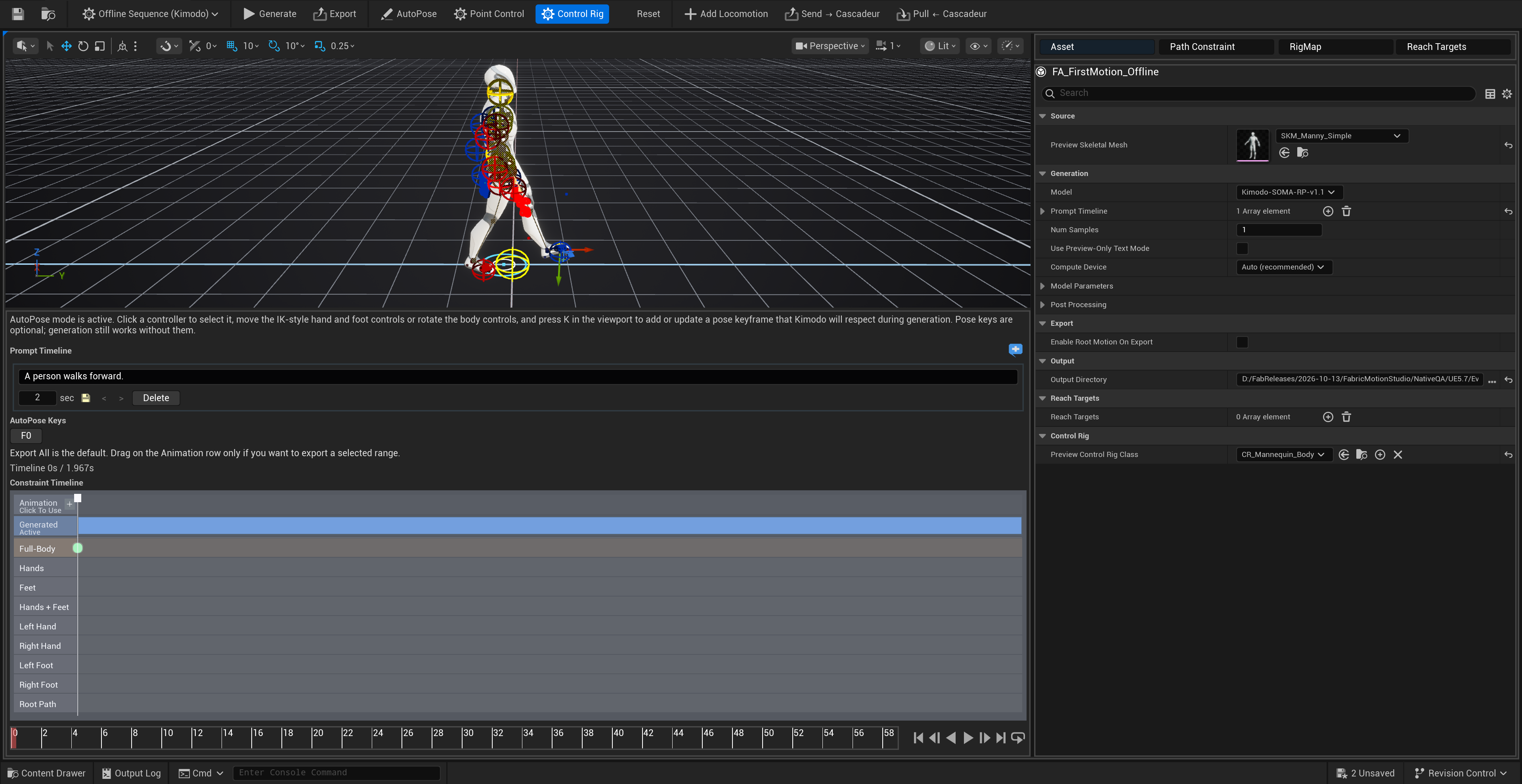
Enable AutoPose, scrub to the desired time, select a bone and adjust the pose, then press K in the viewport to capture a key. Generate again to condition the new motion on your authored keys. Keep an unconstrained copy for comparison.
With a compatible Preview Control Rig assigned, enable Control Rig and move or rotate a control at the desired frame. Edits are relative to the displayed pose and preserve unrelated limbs. The edit updates the pose constraint key at that frame; scrub away and back to inspect it, then Generate to condition a new motion on the authored key.
With the default mannequin rig, root_ctrl moves or turns the whole pose rigidly. hips_ctrl moves or turns the pelvis while keeping the feet anchored within the legs' reach; the torso and hands follow the pelvis.
Use Path Constraint and Create Path to author a saved root route. Select it under Saved Paths; Modify Path edits its viewport points. Include Path Constraint In Next Generation decides whether the next request uses it. Route distances are centimeters, and the timing must allow a plausible gait.
Reach Targets adds spatial contacts; configure the body part, target and timing before regenerating. The RigMap panel lets you inspect and override the source-to-target mapping. Custom characters need compatible humanoid bones and manual review; the sample mannequin result is not a guarantee for every rig.
Timeline and external animation
Export All is the default. Drag on the Animation timeline row to select a smaller export range. Add Locomotion adds existing AnimSequences to the imported animation row; those clips must use the current preview skeleton. Clear an unintended selection before exporting a full clip.
Send → Cascadeur exports the current animation as FBX and optionally opens the separately installed application. Configure its executable in Project Settings, then import the reported file with File → Import → Fbx/Dae and the Scene preset. Edit the motion and export joints and animation as FBX into the bridge inbox. Pull ← Cascadeur imports that file on the same Unreal skeleton. Your Cascadeur license must allow FBX export. Automatic scene import and command registration are not provided.