Generate your first line
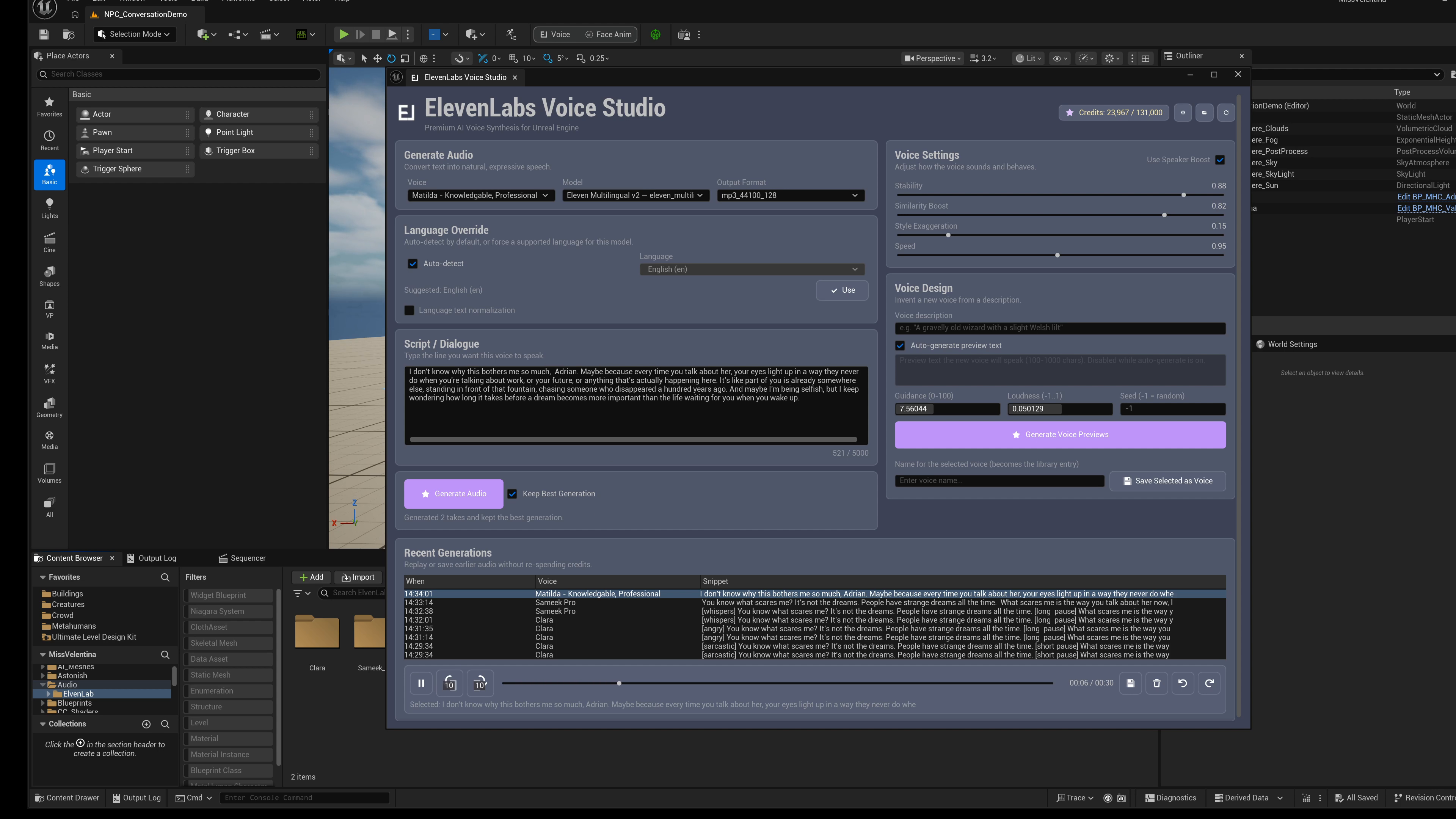
- Open Voice Studio.
- Wait for the voice list to load.
- Select a voice from the dropdown.
- Type or paste the dialogue line.
- Adjust voice settings if needed.
- Click Generate Audio. Studio requests two takes, which can consume credits for both requests.
- Preview the audio in the editor.
- Select the takes in Recent Generations, then use its save control to create SoundWave assets in the Content Browser.
Voice settings
| Setting | Default | Effect and use |
|---|---|---|
| Stability | 0.5 | Steadier delivery at higher values. Eleven v3 uses Creative (0), Natural (0.5) or Robust (1). |
| Similarity Boost | 0.75 | Speaker similarity for non-v3 models; not sent for Eleven v3. |
| Style | 0 | Style strength, sent only when the non-v3 model supports it. |
| Speed | 1 | Delivery-rate multiplier for non-v3 models; not sent for Eleven v3. |
| Speaker Boost | Enabled | Sent only when the non-v3 model supports speaker boost. |
| Keep Best Generation | Disabled | Studio still requests two takes. Enabled: retain the automatically selected take. Disabled: retain both. This does not reduce the number of charged requests; listen before choosing a final take. |
| Output Format | mp3_44100_128 | Controls the returned audio format. Availability depends on your ElevenLabs plan. PCM responses are wrapped as WAV for Unreal importing. |
Saved asset layout
Saved audio is organized by voice name under the configured audio folder. New installs default to /Game/Audio/ElevenLabs. The generated SoundWave can be used like any normal project audio asset in Blueprints, sound cues, UI, level actors, or dialogue systems.
Choose a valid project content folder under /Game. Existing names receive a suffix. If the package cannot be saved, the panel reports failure; check write access and the dirty asset before retrying. Recent Generations is session history: save the takes you want to keep.
The credit meter refreshes usage; it is not a spending cap. Studio has no HTTP-request cancel control. Closing a panel does not guarantee that a submitted provider request stops or that credits are refunded.